Set it up yourself.
No sales call.

Sign up, hire your first AI employee, connect a number and test it. Five steps, all inside the app, each with a short video.

The setup guide

Five steps to your first AI employee

1

Create your workspace

Open the sign-up page, enter your business details and pick a plan: Starter, Growth or Scale. Pay online by UPI or card and your workspace opens straight away. Or choose the trial: Starter for 30 days for ₹20 with autopay, then ₹3,499 + GST a month. The trial has no AI credits; add them from Billing when you are ready.

  • You can change the plan later from Billing.
  • Every plan includes WhatsApp, calling and the CRM. Starter includes 2 calling agents and Growth 5.
2

Bring in your leads

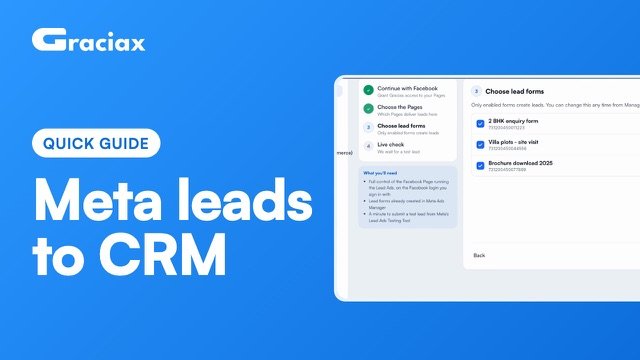
Your AI employees work on the leads in the CRM, so add them first. Connect Meta lead ads or Google Sheets, or import a sheet of existing leads.

  • New leads from a connected source land in the CRM on their own.
  • Add your team as users so a person can take over any chat or call.
3

Hire your first AI employee

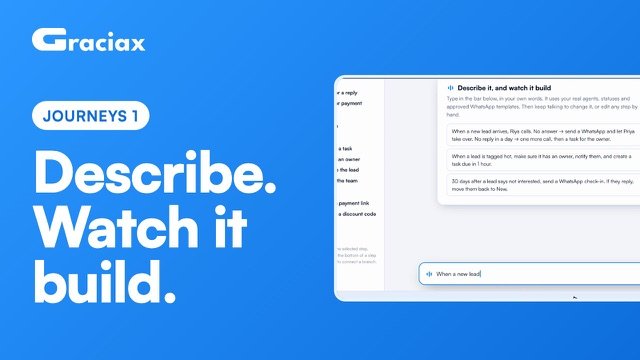
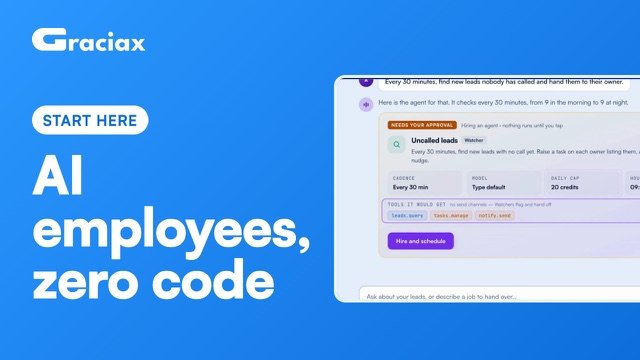
Open AI Studio and go to Templates. Pick a ready role, such as the inbox receptionist, the follow-up nudger or the unowned-leads watcher. If the role you need is not on the list, describe the job in the Studio chat. Check its working hours and daily cap, then press Hire and schedule.

  • Start with one role. Add the next after the first has run for a few days.
  • Give it your price list, brochure and common answers so it replies from your facts.
4

Connect a number

For calls, rent a number inside the app or connect a line you already have. For WhatsApp, connect your WhatsApp Business number with Meta’s own sign-up, or through the provider you use today.

  • Meta reviews your display name and message templates. That review is the one part you wait for.
  • Your WhatsApp number stays yours.
5

Test it, then go live

Talk to your voice agent in the browser, or have it call your own phone, before it speaks to a customer. Read the transcript, adjust the brief, and try again. When it sounds right, switch it on.

  • Anything that sends or spends waits for your approval by default.
  • Every call, chat and change is written on the lead, so you can check its work each day.

Stuck on a step?

Write to support@graciax.com. We reply within one business day.

Email support
Questions

Questions about setting up

Do I need a demo before I start?
No. You can start a trial and set everything up yourself with this guide. A demo is there if you would like someone to walk you through it first.
Is there a trial?
Yes. Starter for 30 days for ₹20, paid by autopay; from day 30 it renews at ₹3,499 + GST a month unless you cancel. The trial starts with no AI credits, so add some from Billing when you want your AI employees to call or message. Or pick a plan and pay online.
What do I need before I start?
A business email, the place your leads come from, and a phone number if you want calls or WhatsApp. For WhatsApp you also need a Meta Business account.
Can I test the AI before customers hear it?
Yes. You can talk to a voice agent in your browser or have it call your own phone, and read the transcript, before you switch it on.
What if I get stuck?
Each step above has a short video, and the full course walks through the whole setup. If you are still stuck, email support@graciax.com. We reply to every message within one business day.
Can you set it up for me?
Yes. Book a demo and we go through the setup with you.
Get started

Hire your first AI employee
today.

Sign up and follow the five steps. Prefer a walkthrough first? Book a demo.